Most of us still write work documents in Word: a quote for a client, the minutes of a meeting, a letter, a quarterly report. We type the text, make the title bold, add a table, and the result looks the way Word documents look. It is fine. It is rarely something you are proud to send.
AI assistants changed the writing part. You can hand Claude your notes and get proper minutes back, or ask it to tidy a quote. This post is about the other part: getting a PDF out of it that looks like a professional laid it out, with no formatting work on your side.
Yes, your assistant can make the PDF
Attach a Word file to Claude (or Cursor, Codex and other assistants that can use tools), ask for a PDF, and you get one. On its own, the assistant usually builds that PDF with a general-purpose library in its sandbox. You get your text in a PDF, but the layout is plain: default fonts, simple tables, spacing nobody chose.
Pressa gives the assistant the layout engine used for books and scientific papers instead. The assistant decides the structure and the look, Pressa lays out every page, and the PDF comes back in a second or two.
The sentence that makes the difference
Attach your file and say this:
Here is my Word file. Keep the content and make a professional PDF of it with Pressa.Two parts of it matter. "Keep the content" tells the assistant not to rewrite your text, only to lay it out. "With Pressa" tells it which tool to use; without those two words most assistants fall back to making the plainer PDF themselves.
Four documents, before and after
Each pair below is the same document twice: on the left as written in Word, on the right as the assistant made it with Pressa, from that file and one sentence. Nothing was fixed by hand afterwards. All four are on the examples page with the Word files, the PDFs and the exact source the assistant wrote, so you can check every line.
A quote for a client
"Here is our quote in Word. Keep every number and make it a professional PDF with Pressa."
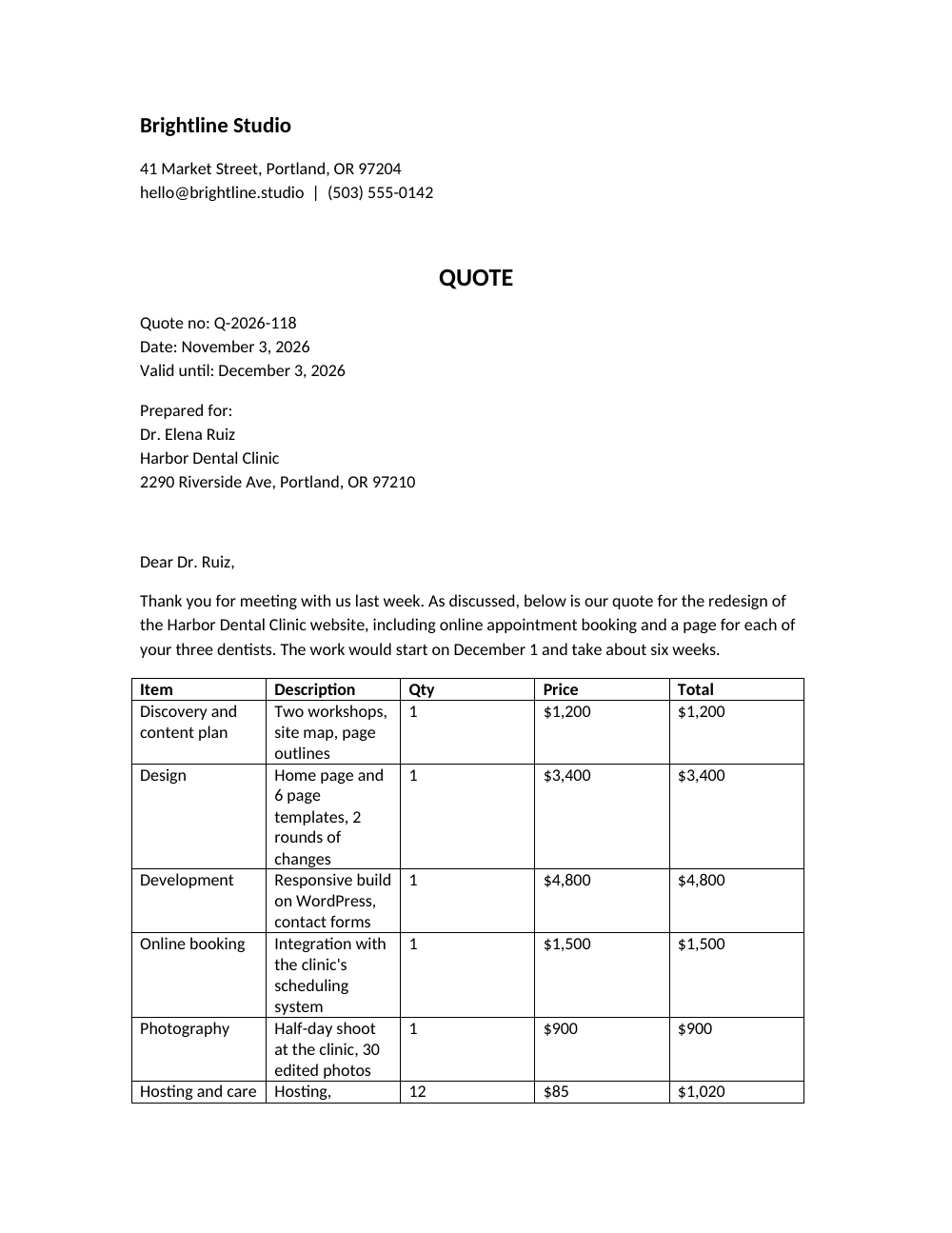
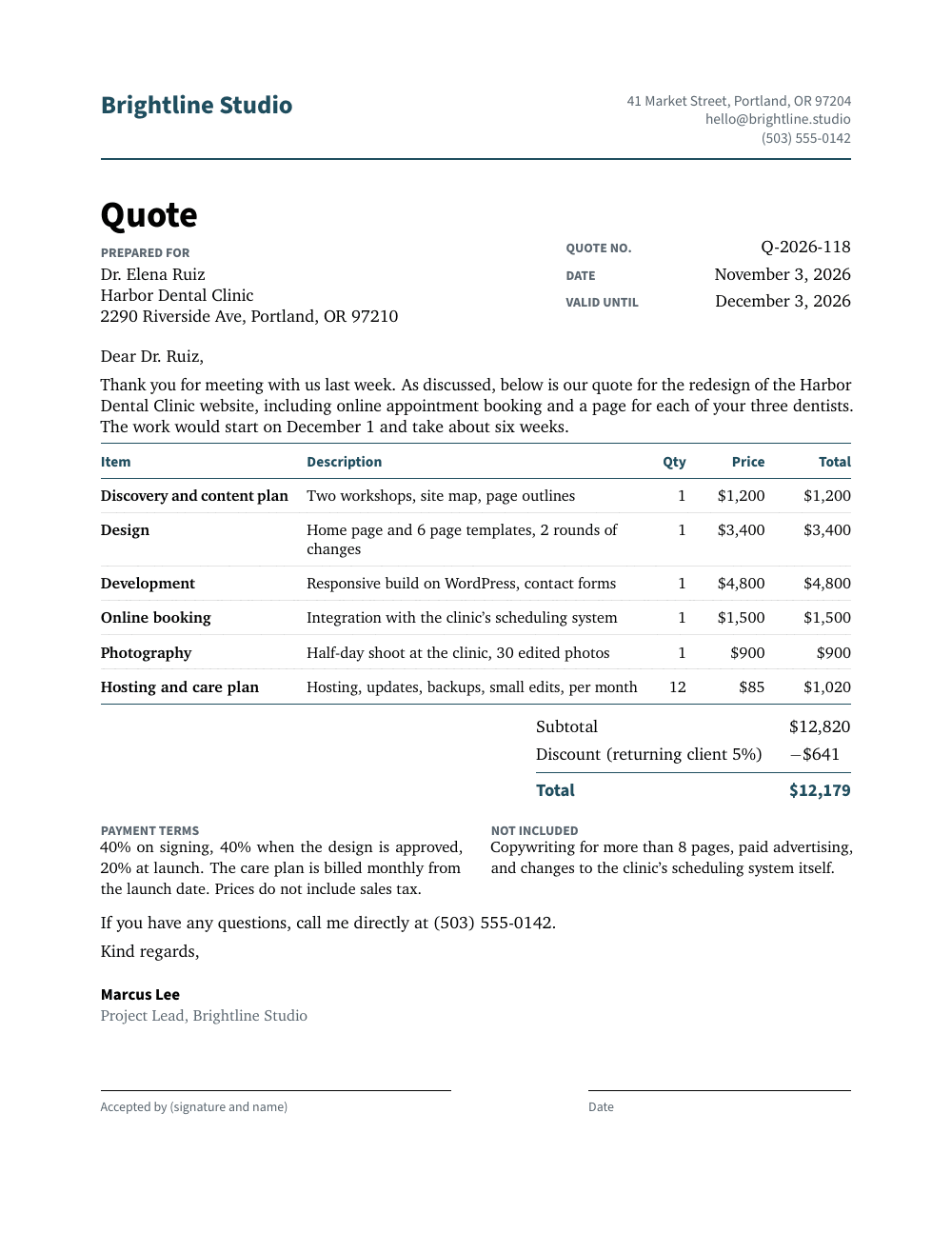
Same text and the same numbers. The items became a clean table, the total stands out and the signature lines fit on one page.
Meeting minutes from rough notes
"These are my notes from today's meeting. Write proper minutes and make a PDF with Pressa."
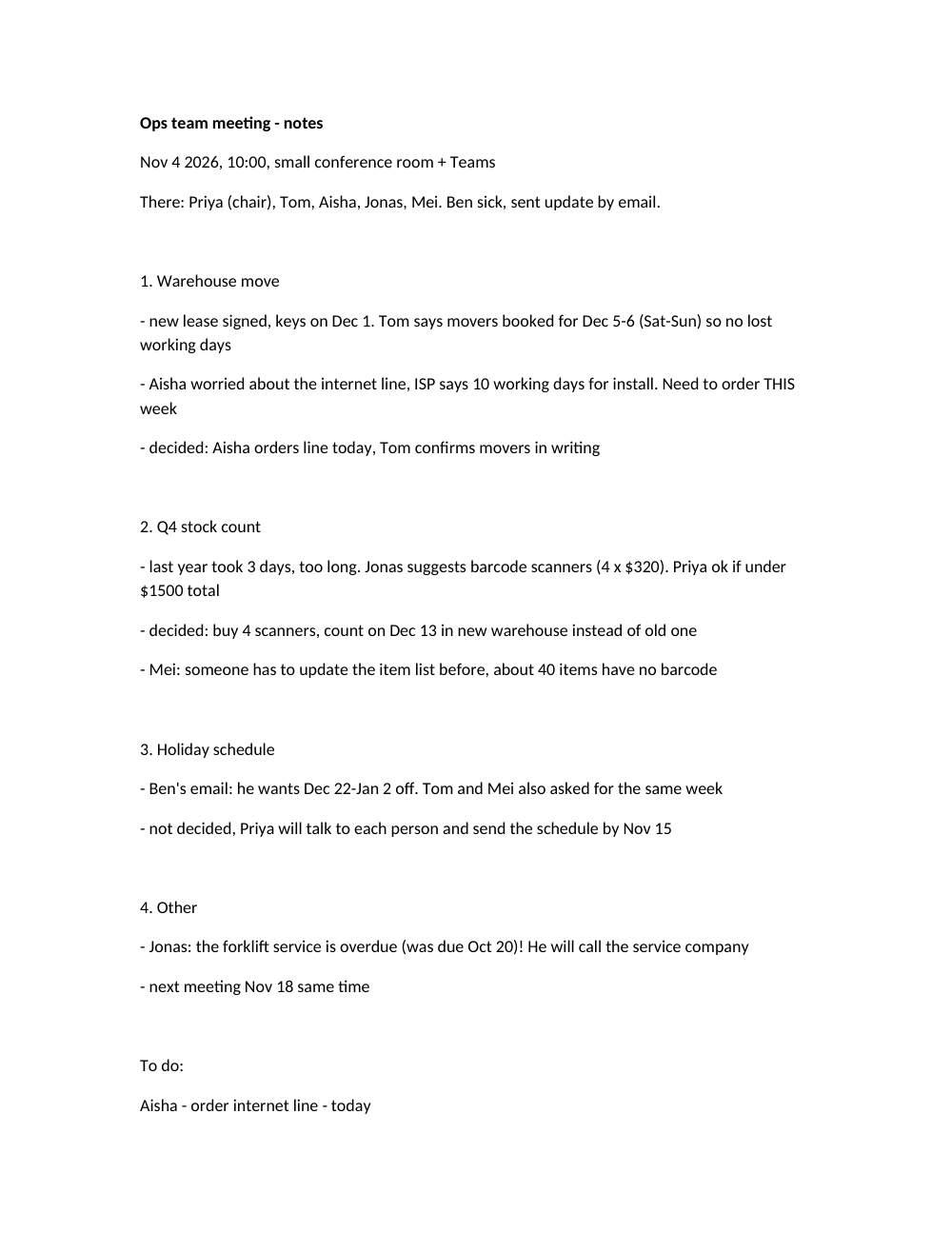
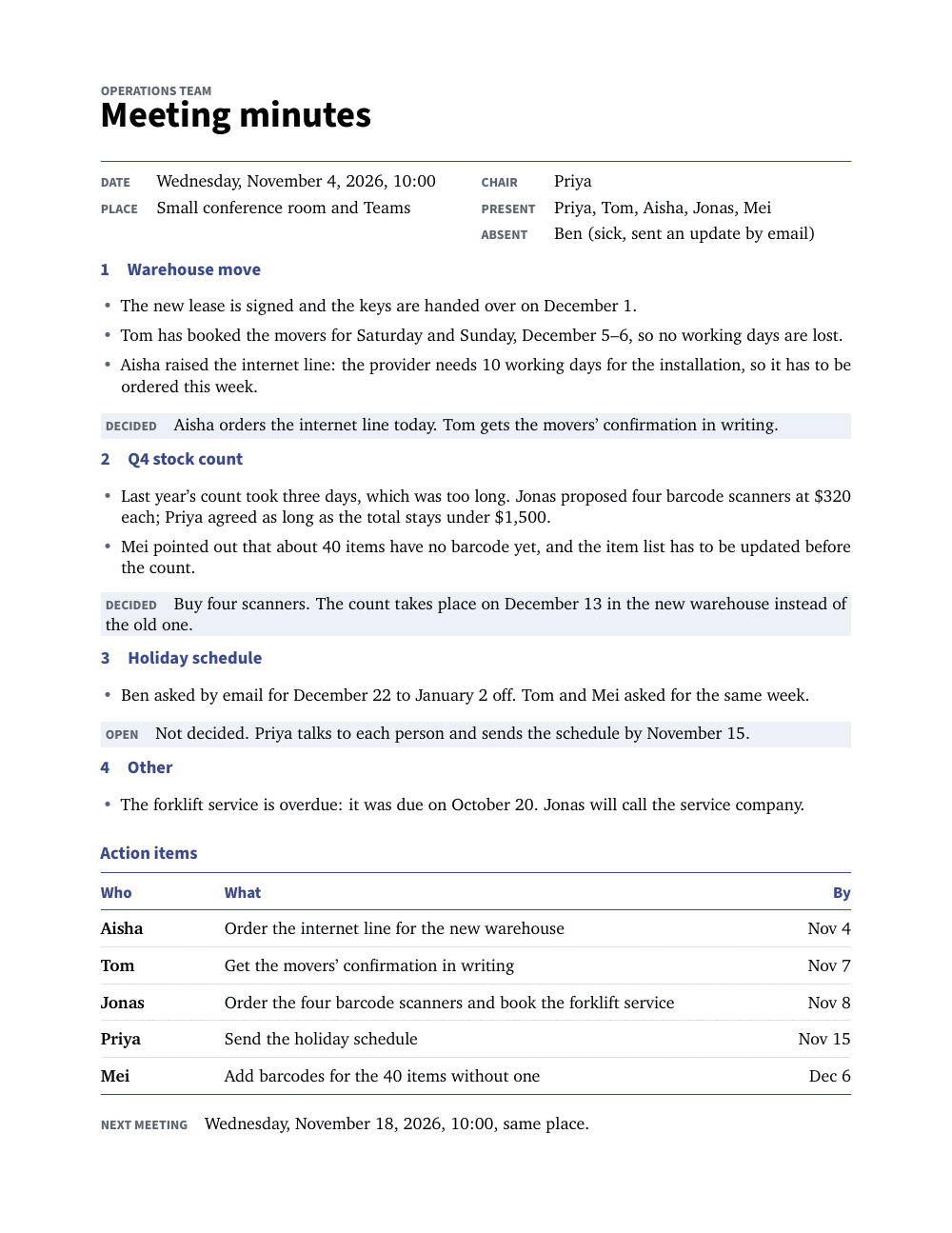
Nothing added that was not in the notes. Decisions are marked, the open question is marked as open, and the to-do list became a table with names and dates.
An official letter to parents
"Turn this into an official letter on our school letterhead and make a PDF with Pressa."
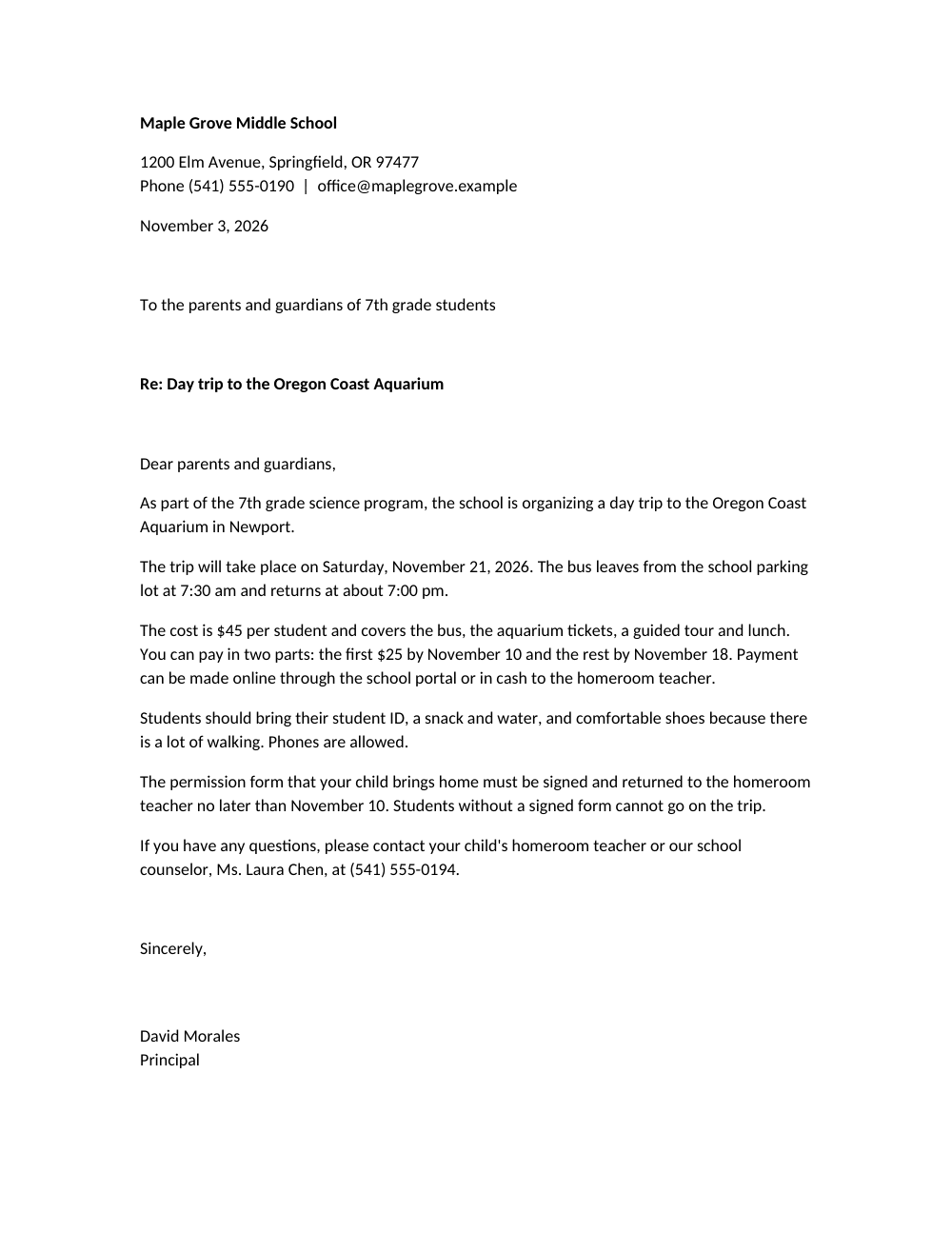
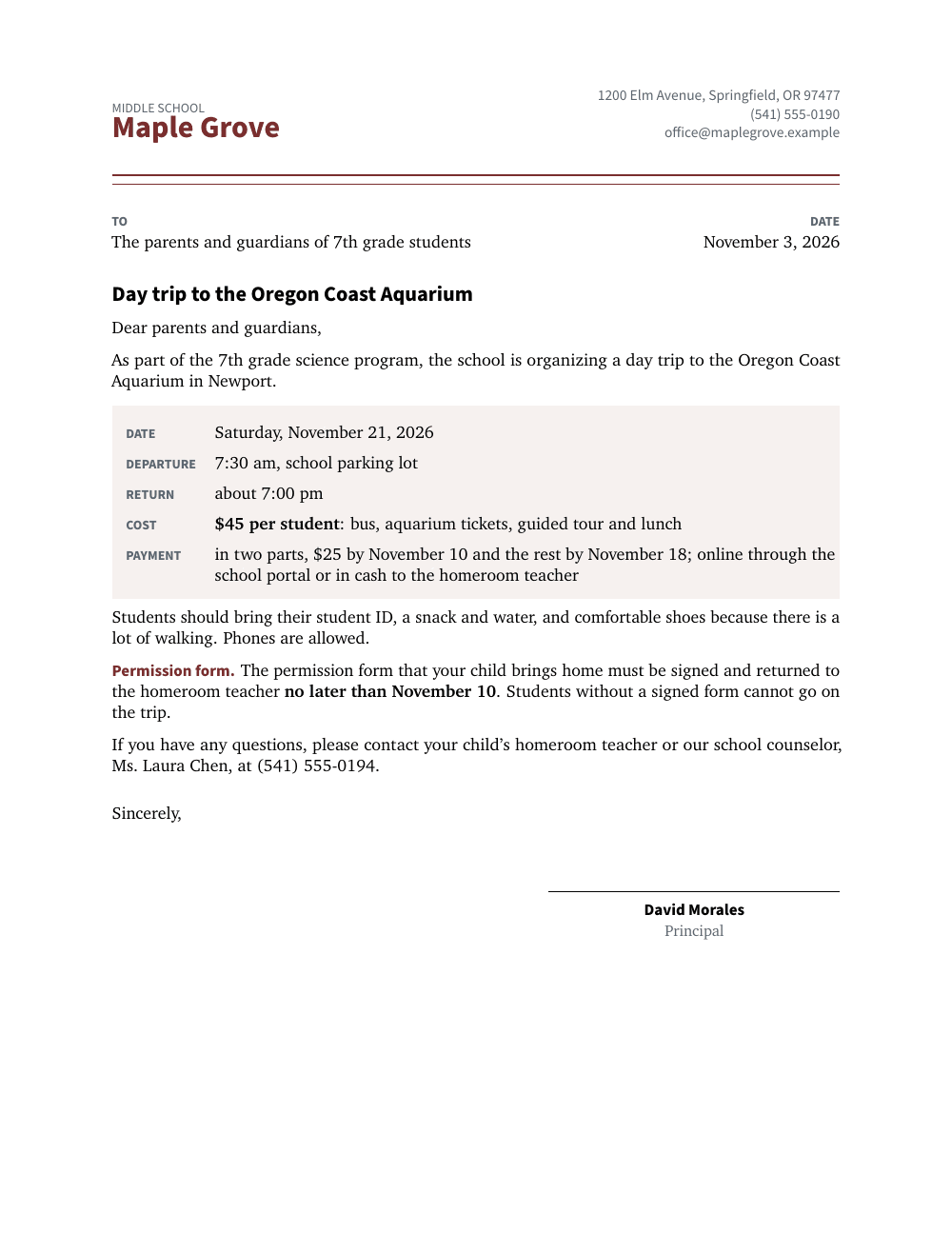
The text stays the same. The trip details went into one box a parent can read at a glance, and the deadline for the permission form is in bold.
A quarterly report with a chart
"Here is my Q3 report in Word. Keep the text, add a chart of the monthly numbers and make a PDF with Pressa."
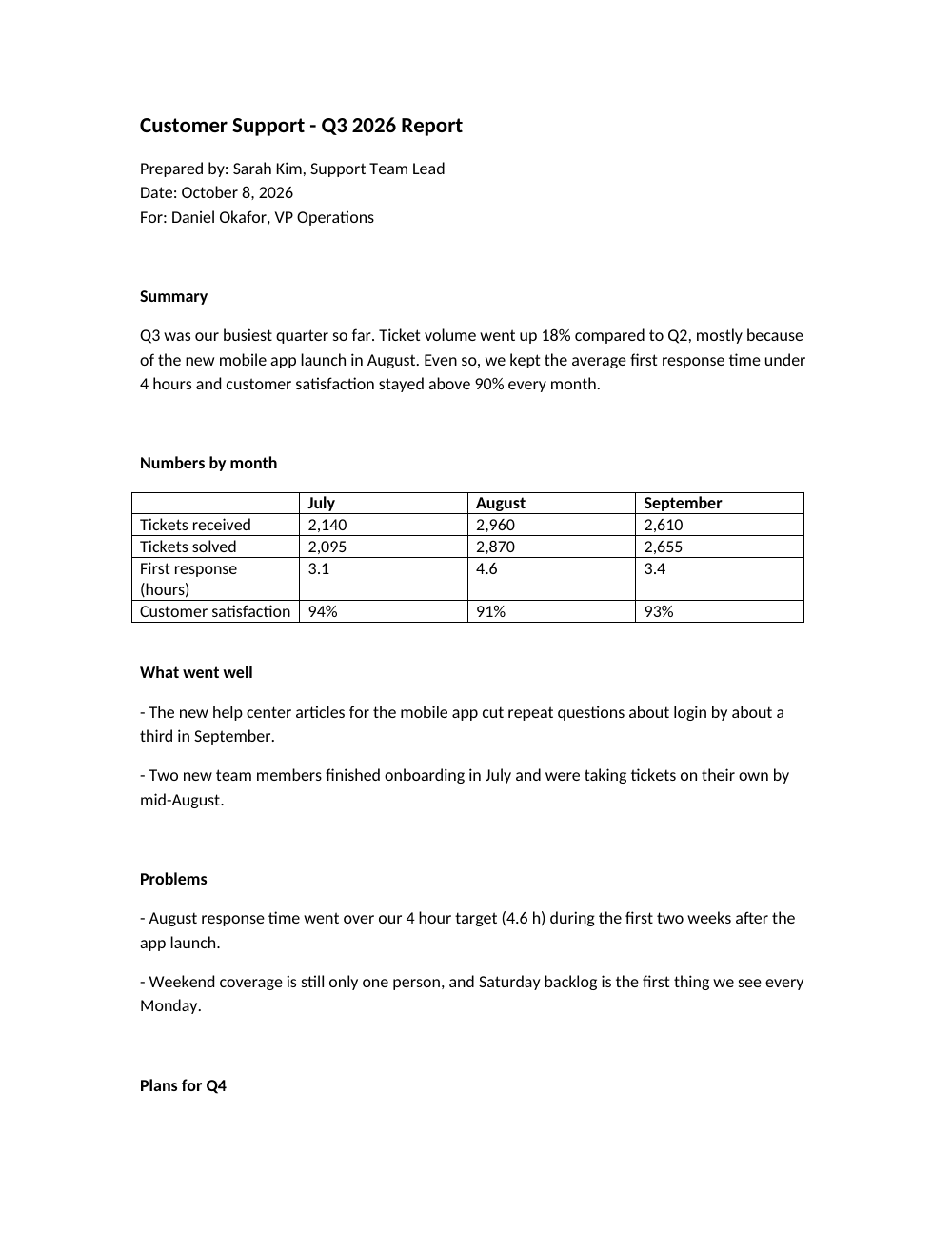
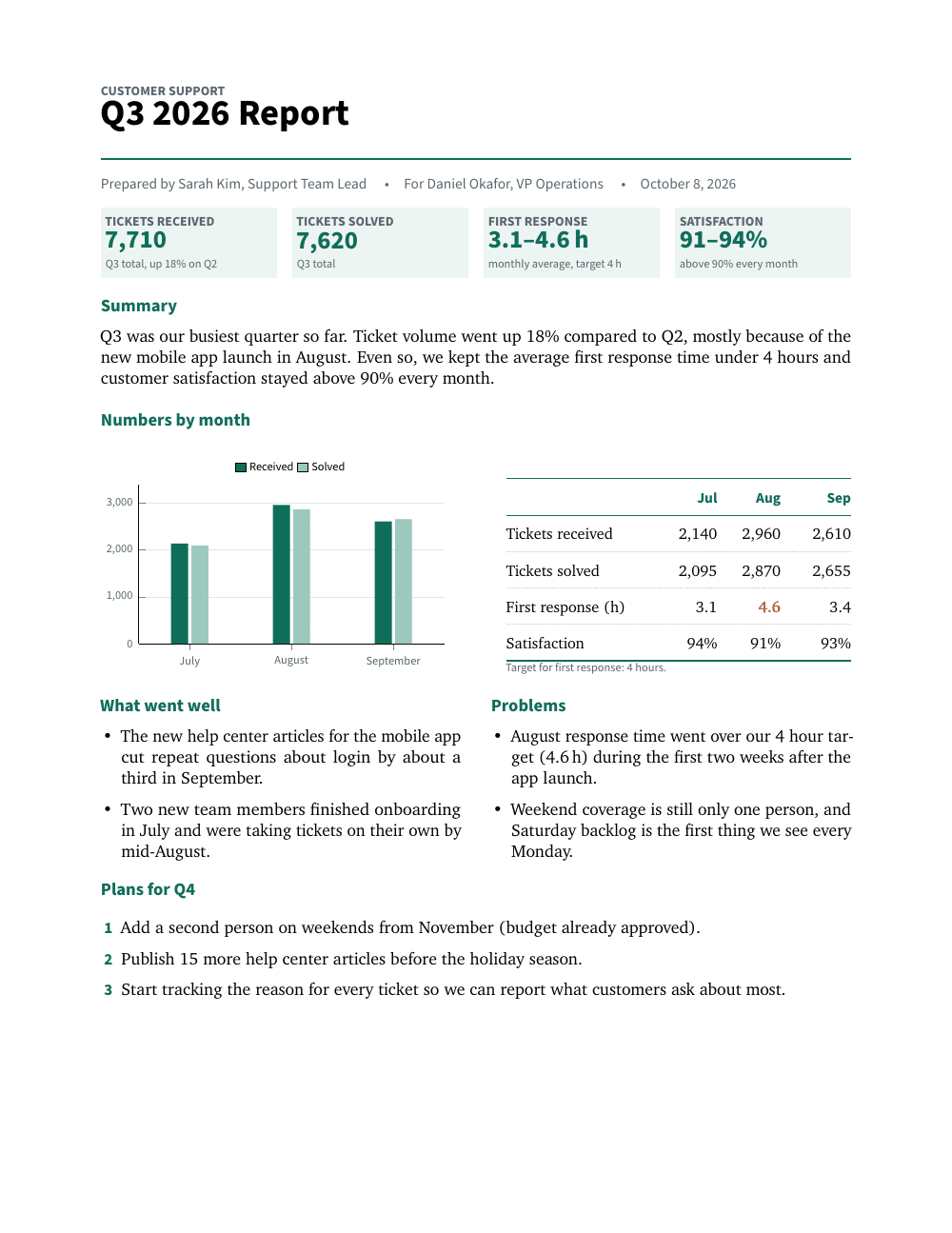
The chart is drawn from the numbers in the table. The month that missed the target is marked, and the quarter totals are added up for the reader.
Connect it once, in three steps
- Open pressa.dev/connect and pick the AI app you use.
- Follow the steps for that app. In Claude it is one button that opens Claude's "Add custom connector" form with Pressa already filled in. When Claude asks how to sign in, choose "Sign in when needed", then click Add.
- Start a new chat, attach a document and use the sentence above.
You do this once per account; after that it works on every device where you use that assistant. Two honest limits: ChatGPT only allows tools like this on its Business, Enterprise and Edu plans, and the free Claude plan allows one custom connector.
What it costs
Without an account you get 3 PDFs a day, up to 3 pages each, with a small "Made with Pressa" line at the foot of the page. A free account gives you 50 PDFs a month without the line. In Claude you do not need to set anything up for that: when the free PDFs run out, Claude shows a Connect button and you sign in or create the account there.
What changes in how you work
The document stops being something you format and becomes something you ask for. "Make the total bigger." "Put the deadline in bold." "Same letter, but for the eighth grade." Each change is one sentence, and the assistant makes a new PDF.
Two things to keep in mind. The result is a PDF, the format you send to a client or your boss, not a Word file a colleague keeps editing; if a document still travels around the office for changes, keep it in Word until the last step and make the PDF at the end. And read what you send: the assistant lays out your text faithfully, but you are still the one who signs it.
For developers
The same engine is an API. Your app or agent sends LaTeX and gets the PDF back, with no TeX installation. The docs have a call you can run without a key, and the examples page compiles the quote above with one command.